
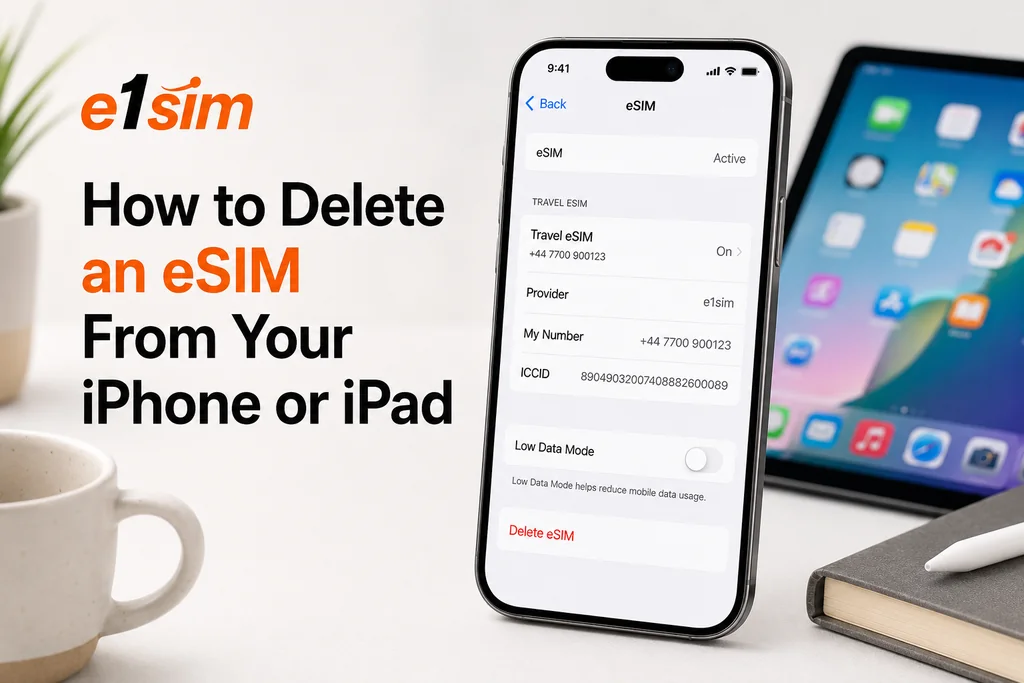
How to Delete an eSIM from Your iPhone or iPad
There are many reasons you might want to remove an eSIM profile from your iPhone or iPad — the plan has expired, you're switching to a new plan, or you're preparing to sell your device. Whatever the reason, the process is quick. Here's how to do it, plus what you need to know before you delete.
Before You Delete: Important Warnings
Deleting an eSIM profile can be permanent. Unlike a physical SIM card you can simply re-insert, some eSIM plans cannot be reinstalled after deletion. Before removing an eSIM:
- Check if your plan has remaining data or validity — if you still have active data, deleting the eSIM means losing that unused data.
- Confirm whether reinstallation is possible — contact your eSIM provider to ask if they support reinstalling the same plan after deletion.
- Save your QR code — if your provider does support reinstallation, you'll need the original QR code. Some providers offer a new code through their app or support team.
- Make sure you're on Wi-Fi before deleting — once the eSIM is gone, you won't have that data connection.
How to Delete an eSIM from iPhone
Method 1: Via Cellular Settings
- Open Settings.
- Tap Cellular (or Mobile Data depending on region).
- Tap the name of the eSIM plan you want to remove (it will appear as the label you gave it, e.g., "Travel," "Work," or a carrier name).
- Scroll to the bottom of that plan's settings page.
- Tap Delete eSIM.
- Confirm deletion when prompted.
Method 2: Via SIM Settings (iOS 16+)
- Open Settings → Cellular.
- Under "SIMs," tap the eSIM plan you want to remove.
- Tap Delete eSIM at the bottom of the screen.
- Confirm by tapping Delete in the pop-up prompt.
How to Delete an eSIM from iPad
- Open Settings.
- Tap Cellular Data.
- Tap Cellular Data Plan.
- Tap Remove Cellular Plan.
- Confirm the removal.
What Happens When You Delete an eSIM?
When you delete an eSIM profile from your iPhone or iPad:
- The eSIM profile is removed from your device's embedded chip.
- Your device can no longer connect to the mobile network associated with that plan.
- Any remaining data or validity on the plan is typically forfeited.
- The profile is permanently erased — it cannot be recovered from the device itself.
Whether you can get the profile back depends entirely on your provider. Some providers allow you to download the profile again using the original QR code or through their app. Others issue single-use QR codes only. Check with your provider before deleting.
Erasing All eSIMs (Factory Reset)
If you're selling or giving away your iPhone, you should erase all eSIM profiles along with your other data:
- Go to Settings → General → Transfer or Reset iPhone.
- Tap Erase All Content and Settings.
- When prompted, choose whether to Keep Plans or Erase Plans. Select Erase Plans to remove all eSIMs.
Note: "Keep Plans" is useful when upgrading to a new iPhone — this option transfers eSIM profiles to your new device.
Deleting vs. Disabling an eSIM
If you want to temporarily stop using an eSIM without losing it, you can disable (turn off) the plan instead of deleting it:
- Settings → Cellular → tap the plan name.
- Toggle Turn On This Line to off.
The eSIM remains stored and can be re-enabled at any time. This is useful for travel plans you might want to reuse later.
Conclusion
Deleting an eSIM from your iPhone or iPad is a simple process, but it carries permanent consequences if your provider doesn't support plan reinstallation. Always check your plan status and verify reinstall options before proceeding. When in doubt, disable the plan temporarily rather than deleting it outright.